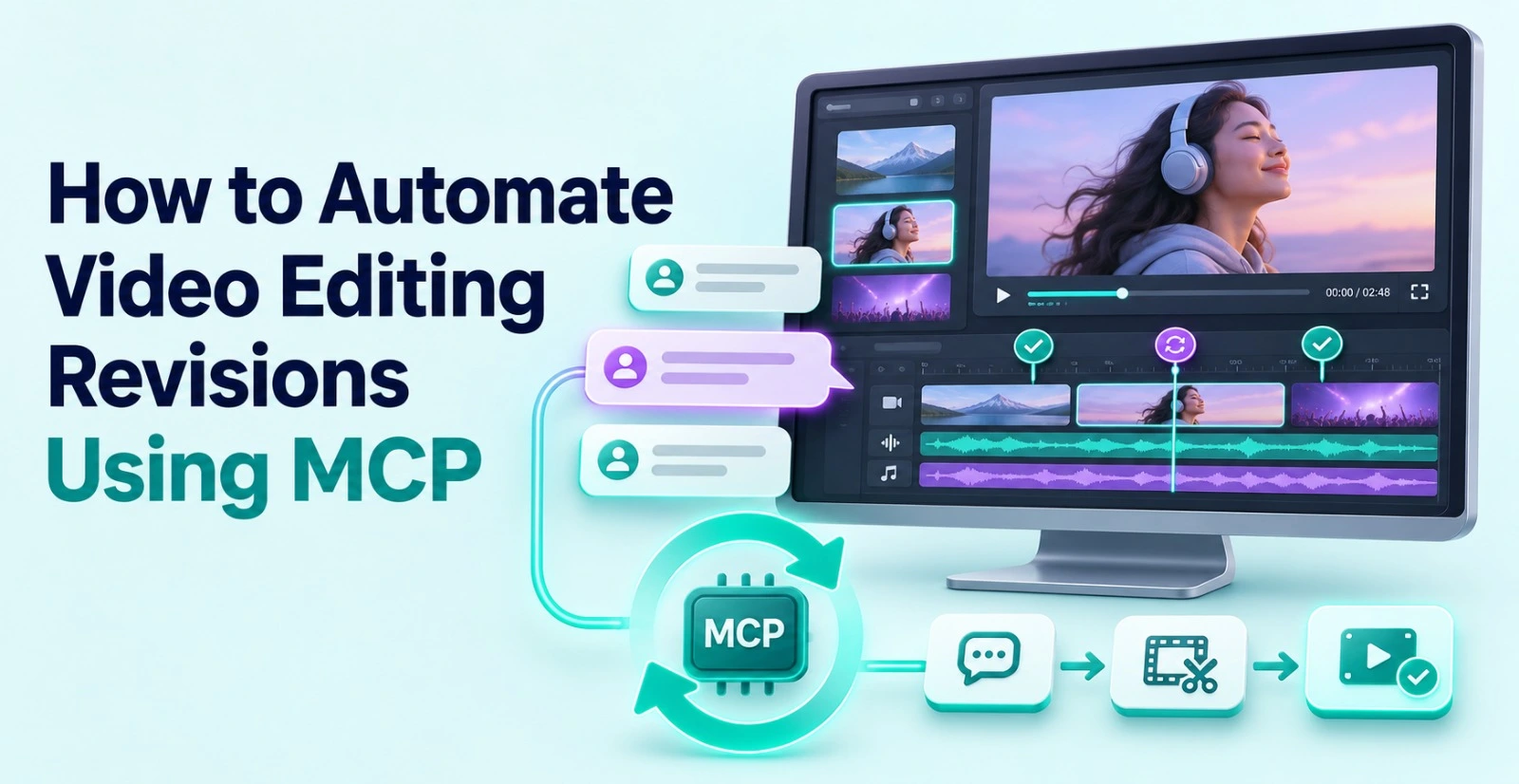
Video editing automation with MCP is the practice of connecting an AI agent to your video editor so it can apply revision notes directly on the timeline. The agent reads the feedback, uses the editor's tools, and shows you the result for review.Revisions are where many video projects lose time. The first cut may take a day. The feedback rounds that follow can take a week.
This guide explains why revisions are so slow and how MCP helps. It also covers how to choose a server, how to set up the connection, and how to run a revision round with an AI agent.
Why do video editing revisions take so much time?
Most revision work is not creative. It is repetitive. A client says the intro feels slow, the music is too loud, and the second scene should come earlier. Each note sounds small, but each one needs the editor to find the spot, make the change, and check the result.The pain grows with scale. Agencies handle several clients at once. Creative teams review the same project with different people. Every round adds new notes, and some notes contradict earlier ones.
Then come the versions. One approved video may need a short social cut, a vertical version and a longer edit for the website. Each version brings its own round of fixes.The editor ends up spending hours on execution instead of judgment. That is the gap automation can close.
What is MCP and how does it automate revisions?
The Model Context Protocol, or MCP, is an open standard that lets AI assistants connect to outside tools. An MCP server acts as the bridge. It publishes a list of actions that an AI agent is allowed to use.In a video editor, those actions can include working on the timeline, adjusting audio, correcting colour, or generating media. The agent reads a revision note in plain language. It then picks the right actions and runs them inside the editor.
This is why an MCP server for AI agents changes the workflow. The agent is no longer a chatbot that only suggests what to do. It does the work inside the project, and you review the outcome.One limit matters here. The agent can only do what the server exposes. If an editor publishes a narrow set of controls, the agent can use only those controls. Always check the tool list before you commit.
Which revision tasks can you automate with AI video editing MCP?
The best tasks to hand over are the ones you can describe in a sentence. Here are common examples:
- Pacing and duration: shorten a scene, tighten a section, or adjust the overall length of the cut.
- Sequence changes: move a scene earlier, reorder sections, or restructure the story flow.
- Audio fixes: clean up dialogue, balance levels, and add sound effects.
- Background music: find or generate music that suits the video and place it on the timeline.
- Colour work: correct and match footage, then shape the tone of a sequence.
- Reference-based changes: share a reference and ask the agent to recreate an effect, with controls you can adjust.
- Versions: turn the approved edit into shorter or platform-specific cuts.
- Section feedback: give notes on one part of the edit and ask for changes only there.
Subjective calls still belong to you. Decisions about tone, story and brand feel need a human. The agent handles the execution after you decide.
Which MCP server should you use for video editing revisions?
Not every video-related server can handle revisions well. Some wrap a command-line tool and perform simple jobs such as trimming or format conversion. Others focus on hosted pipelines for captions or publishing.
For revisions, you need access to a real editing timeline. Use this checklist to compare options:
- Timeline access: can the agent change clips on the timeline, or does it only process files?
- Visibility: can you inspect every change and undo it by hand?
- Client support: does it work with the AI assistant your team already uses?
- Hosting: is it remote, or does it need local software?
- Cost: which parts are free, and which use credits?
Invideo Editor fits this checklist well. It is a professional video editor with AI editing agents, and it is completely free to use. It runs in the browser, so your team can sign up and start working without installing anything.The MCP video editing server from invideo connects external AI agents directly to that editor. You can connect through Claude, ChatGPT, Claude Code, Codex, Cursor, VS Code or Gemini CLI. The agent can then edit professional timelines, correct colour, mix audio, and generate images, video and audio.Because the work happens inside the editor, every change stays visible. That matters for revisions, where trust in the result depends on being able to check it quickly.
How do you set up an AI video editor integration step by step?
The steps below follow the connector flow for Claude on the web or Claude Desktop. Menu names can change, so use them as a guide.
- Open the connection page. Go to the MCP page for your editor and select your AI client. It lists the server URL and the latest instructions.
- Open Claude's connector settings. In Claude, open Customize, then Connectors. Select the plus button and choose Add custom connector.
- Name the connector. Use the editor's name so your team can recognise it later.
- Paste the server URL. Copy it from the connection page instead of typing it. One wrong character will stop the connection.
- Sign in when asked. The first tool call asks you to sign in. This links the connector to your editor account.
- Test it. Start a new chat, confirm the editor's tools are available, and ask the agent to open your project.
The same idea applies to other clients. Cursor, VS Code, Codex and Gemini CLI each have their own way to add a remote server. The InVideo MCP connection uses the same server across them, so a team can mix tools.If the tools do not appear, start a fresh conversation. Check that the connector is switched on for that chat, and confirm the URL matches the one on the connection page.
How do you run a revision round with an AI agent?
A good revision workflow turns messy feedback into clear instructions. Follow this order:
- Collect all notes in one place. Merge feedback from every reviewer into a single list.
- Resolve conflicts first. If two people disagree, decide before the agent starts.
- Break notes into small, specific tasks. "Make the intro punchier" becomes "cut the intro to ten seconds and start on the product shot."
- Give the agent the notes in one message. Number them so the result is easy to check.
- Review the timeline. Compare each change against its note.
- Redirect where needed. Send short follow-up instructions for anything that missed.
- Approve and export. Save the version and keep it for the next round.
This is where invideo Editor earns its place. Its AI editing agents take on the repetitive execution, and you keep the project and every change made to it. You direct the revision the way you would brief an assistant editor.Teams also benefit from the shared timeline. Editors, collaborators and AI agents can work inside the same project, so nobody has to pass files back and forth.
How do you keep quality and control when agents edit for you?
Automation should speed up the work, not remove your judgment. Three habits keep quality high.
First, always review the timeline. Do not approve a revision from a chat summary alone. Look at the actual edit.
Second, keep a clear version trail. Save each approved round so you can return to an earlier cut if a note turns out wrong.
Third, stay ready to take over by hand. Timeline control lets you inspect every change and keep refining manually. The agent handles the routine steps, and you handle the delicate ones.
What does automated video revision cost?
Costs come from two places, so it helps to separate them. The first is your AI assistant. Its own plan and usage limits apply to every conversation, including editing sessions.The second is the editor. With invideo's setup, the manual editor is free. Ordinary editing through the MCP connection does not use invideo credits. Generating new images, video or audio does use credits.That split makes budgeting simple. A revision round that only reworks existing footage should use few or no credits. A round that adds a lot of generated media will use more.
What mistakes slow down automated revisions?
Teams often lose the benefit of automation through a few avoidable habits:
- Sending vague notes. "Make it better" gives the agent nothing to act on. Be specific about the scene, the action and the result.
- Stacking conflicting feedback. Resolve disagreements before the agent starts.
- Skipping the review. An unchecked change can slip into the final export.
- Changing too much at once. Work in focused rounds so you can see what each note did.
- Ignoring client limits. Check what your AI assistant plan allows before a large project.
The fix for almost all of these is a clear process. Good inputs lead to good outputs.
Conclusion
Automating video editing revisions with MCP is mostly a matter of setup and discipline. You connect an AI agent to the editor, send clear notes, and review the result on the timeline. The repetitive work shrinks, and your team keeps the creative decisions.The best results come from pairing capable agents with an editor that keeps every change visible. Invideo Editor offers that combination, with a free browser-based editor and an MCP connection for the AI tools you already use.Start with one project and one round of feedback. Measure how much time you save, then expand the workflow to the rest of your team.
Frequently Asked Questions
Q1. Can AI automate video editing revisions?
Ans. Yes, when an AI agent is connected to a video editor through MCP. The agent can apply written revision notes on the timeline, such as changing pacing, reordering scenes or adjusting audio. A human should still review the result and make creative decisions.
Q2. What is an MCP server for video editing?
Ans. It is a service that lets an AI assistant use a video editor's functions. The server publishes a list of actions, and the assistant calls them when you give instructions in chat. The tasks available depend on the controls the server exposes.
Q3. How do I connect an AI agent to a video editor?
Ans. In Claude on the web or Claude Desktop, open Customize, then Connectors, and choose Add custom connector. Name it, paste the server URL from your editor's connection page, and sign in when asked. Other clients such as Cursor, VS Code and Gemini CLI have their own steps.
Q4. Does MCP video editing cost extra?
Ans. It depends on the tools you use. With Invideo Editor, the manual editor is free and ordinary editing through MCP does not use invideo credits, while generating new media does. Your AI assistant's own plan and usage limits apply separately.
Q5. Will automation replace video editors?
Ans. Unlikely. Automation takes over repetitive execution such as applying small changes and making versions. Editors keep the story, the rhythm and the final say over every change.